Troubleshooting: An attendee scanned into the wrong session
If an attendee scans into the wrong session or the wrong session was selected in the CBS (ConferenceBeat Scanner) app, please complete the following steps:
1. Go to Continued Ed > Check in & Check out > Session Check ins in the admin portal
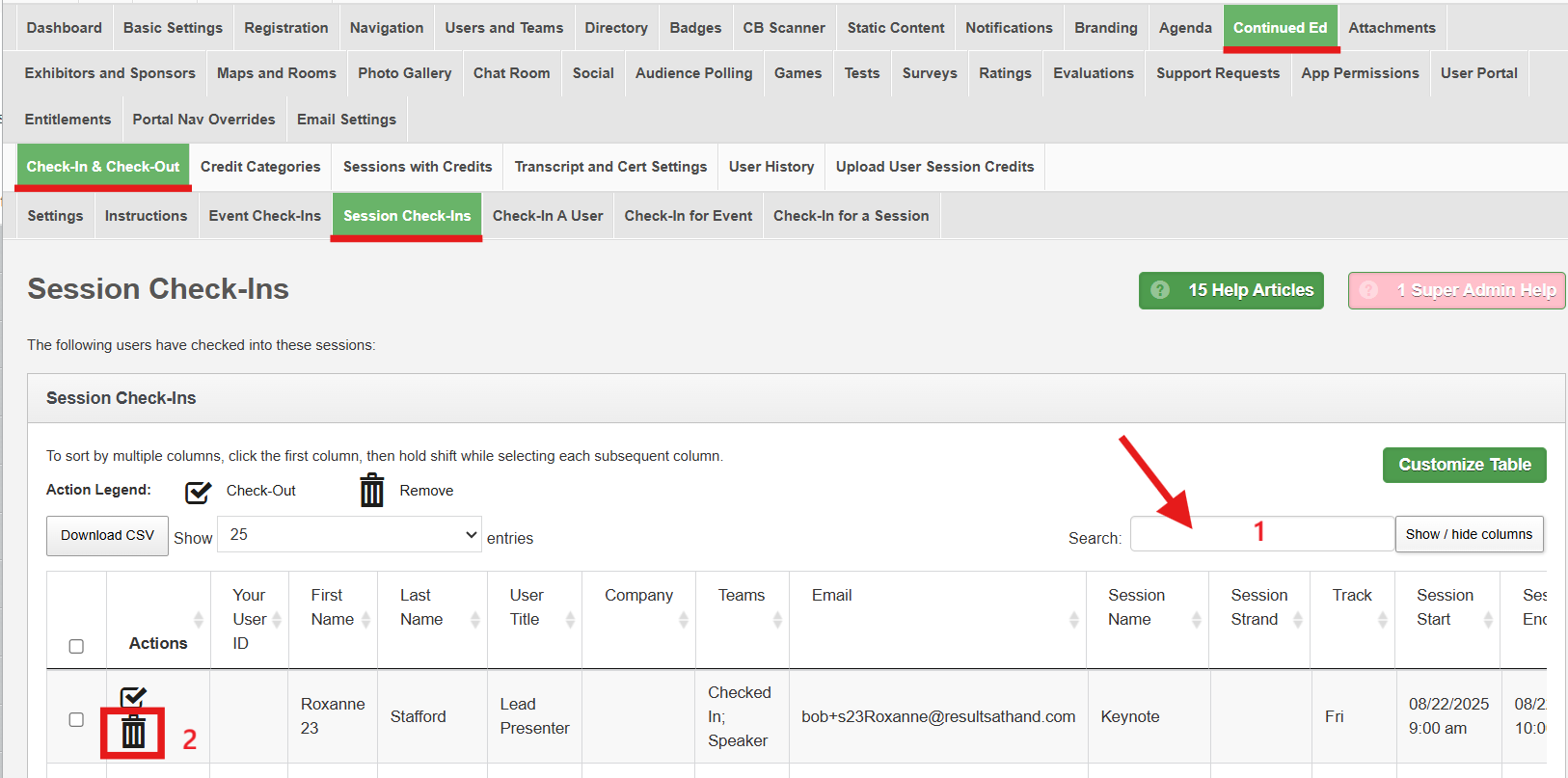
- Search for the attendee's name in the search bar
- Click on the trash can to remove the incorrect check in.
2. Click on the "Check in for a Session" tab
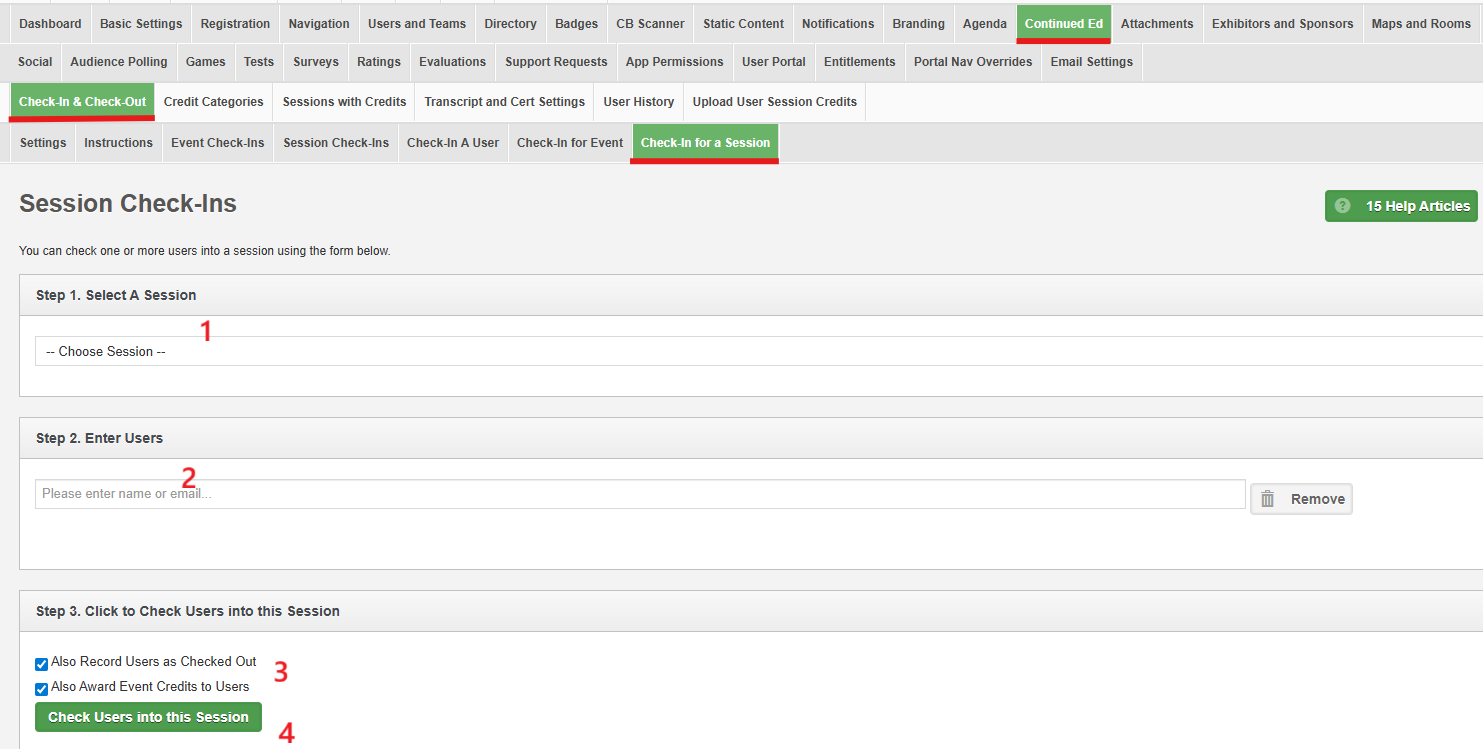
- Select the session from the drop-down menu
- Start typing in the user name and select it from the list
- Select if you also want to record the check out and/or event credits
- Click on the "check users into this session" button to save.
See the help troubleshooting article: I scanned a user but the check in is not showing in the portal/app for help with check ins showing in the app.
Related Articles
ConferenceBeat Scanning (CBS) - Attendance/CEU tracking Settings
Attendance/CEU Tracking Portal Settings: To set/update the settings that will be utilized in the CBS app go to CB Scanner > Attendance > Settings in the admin portal. Automatically process scans: select "yes" to process scans in real time. Select ...ConferenceBeat Scanner (CBS) Portal Reporting - Attendance/CEU tracking
Attendance/CEU Scanning Reports In the admin portal, go to CB Scanner > Attendance Summary: The summary screen will show users who have been scanned into a session or event. This will display 1 entry per person even if they were scanned multiple ...ConferenceBeat Scanner (CBS) - instructions for attendance/CEU tracking
CB Scanner – Session/Event Scanning Instructions Important note: permissions to access the app must first be established in the CB Menu Builder. Please see the help video "CB Scanner Menu Builder Instructional Video " for more information Step 1: ...Troubleshooting: I scanned a user but the check in is not showing in the portal/app
Here are the most common reasons a scan (check in/out) would not showing in the portal or app. 1. They scanned into overlapping sessions The setting in the portal under Continued Ed > Check in & Check out defaults to "prevent overlapping sessions" If ...ConferenceBeat Scanner (CBS) - Attendance/CEU scanning introductory video
This video demonstrates an overview of using the CBS app for attendance scanning. For more detailed instructions on setting up and using the app, please see the Menu Builder article or CBS scanning instruction article