Find participants who are checked into an event
How do I know how many participants have checked into my event?
As an admin you can log into the platform admin portal and see checked-in users and also those who have yet to check in. Participants are automatically added to the checked in team when they print their badge. To see the checked-in team from the admin portal go to Users & Teams > Teams and select the Checked in team.
- From here you can search for a team member. Scroll to the bottom of screen 1 to see the total number of participants in the checked in team:
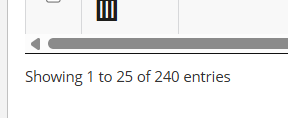
In the above example there are 240 checked in participants.
- To see who has not yet checked in, click on the "Users Not on Team" tab in the above image (red arrow).
Related Articles
Onsite Badge Printing Tips for success
Tips To ensure your next event's registration and check-in process runs smoothly and your participants have a great experience, follow the below tips for printing badges onsite. 1) Early Kiosk Setup Setup and Test all of your printer kiosks at least ...
Onsite Badge Printing User Manual
This article includes a pdf user manual for on-site printers and tablet kiosks. Includes diagrams of the brother printer and 2 types of tablets Includes diagrams for device connections Includes troubleshooting of printer and tablets For configuration ...
Printing a Single Badge - NOT for on-site badge printing
To print a single badge from the portal, follow the process below. If you are at the event and need to print badges for new registrants, please follow these instructions. From the Side navigation go to Users & Teams > Manage Users From the User ...
Assemble your Onsite Badge Printer Kiosk Video Tutorial
In this Video Tutorial we will demonstrate the assembly of the badge printer kiosk for event badge printing and check-in
Onsite Badge printing - Print Quality Tips
Print Quality Tips If the print quality is not consistent. You may need to clean the printer roll. Open the top of the printer by pulling the 2 side tabs towards you. Peel back a piece of the test print or test badge and use it to remove lint or ...