Event Dashboard and Overview Stats
Configuration-at-a-Glance
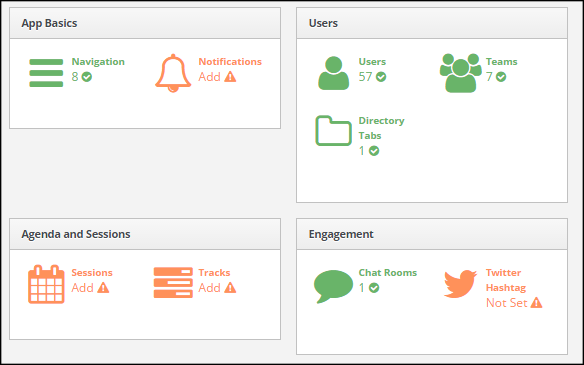
When logged into the admin portal and entering an event, the first screen clients are greeted with is the configuration-at-a-glance dashboard. This screen visually and quickly shows administrators what is ready to launch and what is still needed to make their app fully functional with all the bells and whistles.
Icons shown in green mean the feature has been setup while the orange icons show the feature has not. To set a feature, just click the icon and you'll be taken the feature's setup screen in the admin portal.
Related Articles
1. Introduction to the Admin Portal
Introduction to the Admin Portal As an app administrator, you have access to the Results at Hand CMS Admin Portal to maintain your app. This guide will walk you through the basics of the portal and help you get started with your app setup. Admin ...Launch an Engaging Event App in Just 28 Days
Use the suggested timeline below to complete a basic event app in 28 days: 1. Welcome email delivered to client by R@H (includes set-up guide (premium apps), upload examples and links to getting started) Upon kickoff 2. Start uploading and adding app ...2. Build your Event App
Build Your Event App As an app administrator, you have access to the Results at Hand CMS Admin Portal to maintain your app. This guide will provide step-by-step instructions to building your event app with our Admin Portal software. If this is your ...3. Build your App: Checklist and Timeline
App Check List and Timeline for Launch You will want to review the Introduction to the Admin Portal and the Build your Event App help articles as references for building out your event app. Both can be found in HELP (top navigation right-hand side). ...Event Types: Meeting vs Conference
Event Types With your mobile event app from Results at Hand, you have the option to add two different types of events: meetings and conferences. This guide will explain both types of events and how to determine which is best for your event. ...